





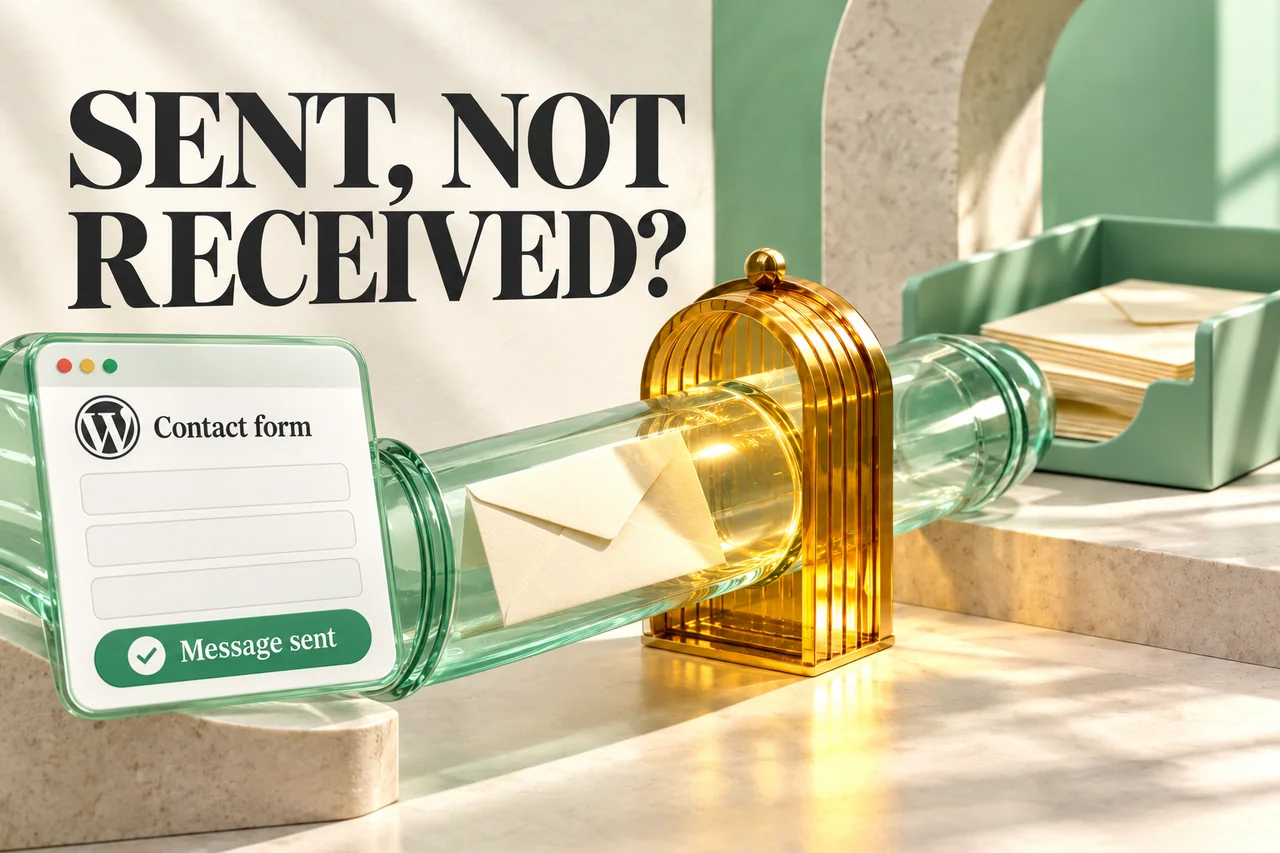
A visitor submits your contact form and sees a success message, but the business receives no email. Replacing the form immediately may miss the real problem, because saving an enquiry, handing an email to a mail system and delivering it to an inbox are separate events.
If your contact form is not sending emails, follow the submission through those stages. First establish whether the website received the enquiry. Then inspect the sending configuration, any queue, the mail provider's response and the receiving mailbox.
The steps below suit a business owner working with a developer or hosting provider. WordPress plugin settings and custom application controls differ, but the underlying evidence you need is similar.
Define what the success message actually confirms
Ask the developer which event triggers the message on screen. Does it mean the server accepted the form, a database record was saved, or an email-sending function returned successfully?
The Contact Form 7 documentation explains that its sent response does not establish final inbox delivery. Email can encounter problems after the application hands it over.
Test the real form rather than relying only on a plugin's test-email button. A test email may use a different recipient, sender or route. Use an obviously labelled test submission and keep the time and result so it can be matched with logs.
Check whether the enquiry reached the website
Look for a submission record in the admin inbox, CRM, form-storage plugin or application database, where that feature exists. Some forms send mail without storing submissions, so do not assume every website has an enquiry archive.
If no record is expected, ask which server-side evidence confirms receipt. A visible thank-you message generated only in the browser is insufficient to diagnose the backend.
If the enquiry was saved, protect it while troubleshooting delivery. Avoid deleting the form's records or replacing the database to fix an email issue. Agree how access and retention are handled, especially where enquiries contain private business or customer information.
Inspect the recipient and sender settings
Check the destination address character by character. Look for an old staff mailbox, a misspelling or a recipient setting that differs between forms. Test each important enquiry route separately.
Use a sender identity that the business is authorised to send from. The visitor's address is normally more appropriate as Reply-To than as a forged sender address from an unrelated domain. Keep the sender name clear so recipients recognise the message.
WordPress.com's plugin email guide discusses domain-based senders and delivery troubleshooting. Follow the documentation for the particular plugin and mail service instead of copying another website's credentials or settings.
Trace the mail handoff and any queued work
Ask for the mail system's outcome for the exact test time. Was the message accepted by the provider, rejected, left pending or never attempted? Those states need different actions.
If the website uses a delivery queue, confirm that its worker or scheduled task is running and inspect failed or pending jobs. A queue is not required by every form, so establish the actual architecture before adding a new scheduler.
For SMTP, review the configured host, authentication and encryption against the provider's current instructions. Keep passwords and full connection details out of public tickets or screenshots. An authentication error should be investigated directly rather than repeatedly submitting customer enquiries as tests.
Check domain authentication and the receiving mailbox
Have the mail administrator verify the sending domain's authentication and alignment for the chosen provider. Google's email sender guidance explains requirements such as authentication and distinguishes additional requirements for bulk senders.
Do not add guessed DNS records or create multiple conflicting SPF records as an experiment. Changes should follow the actual provider configuration and preserve other legitimate sending services.
At the receiving side, check Spam, filters, forwarding, quarantine and mailbox capacity. If a message was accepted for delivery but is not visible, the provider's logs and message details are more useful than changing the website design.
An example: a stored enquiry and a failed email job
Illustrative example, not a client result: A service company sees a new enquiry in its admin inbox, while the email-delivery screen shows Pending. The contact form has done its receiving job, but the background delivery task has stopped running.
The developer checks the queue configuration and logs, restores the intended scheduled processing and sends a clearly labelled test. The business verifies the saved record, the mail-system outcome and the actual inbox receipt separately.
That sequence avoids treating a functioning form as a layout problem. It also makes the limitation visible: provider acceptance alone is not proof that a staff member read or acted on the enquiry.
Build a reliable enquiry-handling routine
Keep a monitored business inbox and, where suitable, a protected submission record. Assign someone to review pending delivery errors rather than discovering them only when a visitor complains.
After a website, plugin, hosting or mail-provider change, test the routes that matter: contact, consultation, applications and any other business-specific form. Confirm the correct recipient and any attachments without exposing real customer documents during testing.
Our website maintenance and support services can help trace these connections. If analytics shows submissions that the business never receives, also review the conversion tracking checks so a button click is not mistaken for a completed enquiry.
Frequently asked questions
Will installing an SMTP plugin always fix the problem?
No. The issue may be the recipient, application logic, a queue, domain authentication or the receiving mailbox. Establish the failing stage first.
Can mail go to Spam even when the website says Sent?
Yes. A successful application handoff does not determine the receiving mailbox's classification. Check the actual message and provider evidence.
Should I use the visitor's email address as the sender?
Use an authorised sending identity and configure replies appropriately. Follow the mail provider's and form plugin's documentation.
What information should I give the developer?
Provide the form URL, test time, expected recipient, visible response and whether a saved submission exists. Share credentials only through an appropriate private method.
Sources and further reading
- Contact Form 7: Sent response but no received email.
- WordPress.com: Troubleshoot plugin email issues.
- Google Workspace: Email sender guidelines.
Guidance checked on 29 October 2026. Configuration depends on the actual website and mail provider. The example is illustrative.
Make every enquiry traceable.
Review the form response, saved record and email handoff together so the business can locate a failed step.
Discuss form delivery